
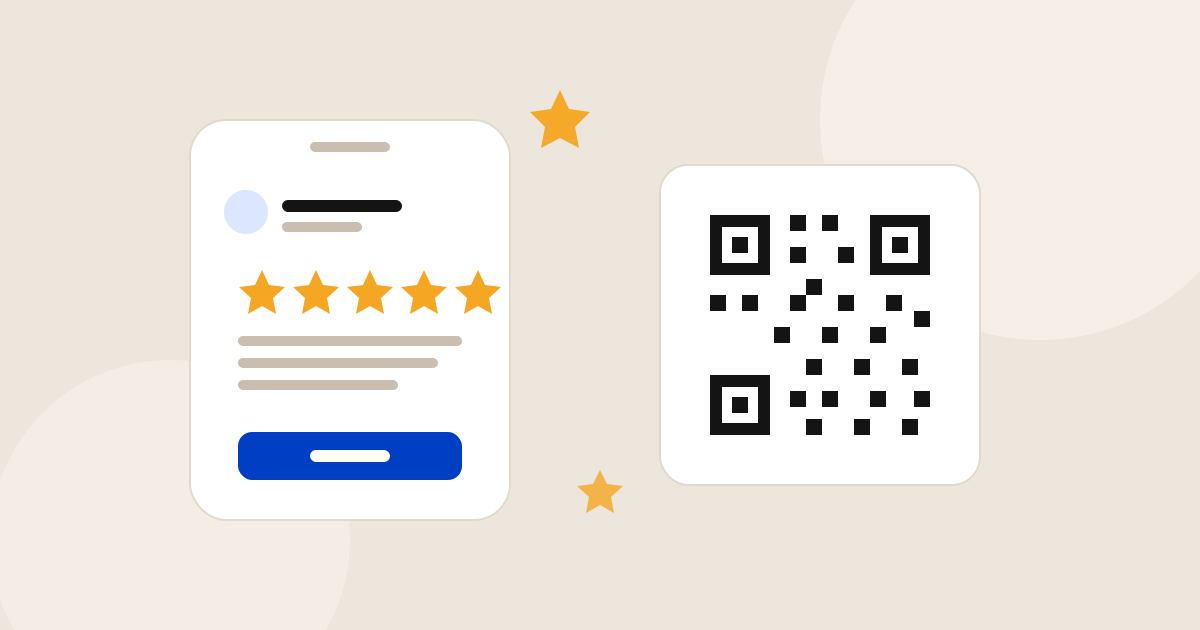
The single biggest reason customers do not leave you a Google review is friction. They are happy to vouch for you, but searching for your business, scrolling past the photos, and hunting for the right button is enough to make most people give up. A direct Google review link removes all of that. One tap and they are on the review screen.
This guide shows you three ways to create your Google review link (free), how to turn it into a QR code, and exactly how to share both so they actually get used. If you just want it done in ten seconds, use our free Google review link and QR code generator and skip straight to the sharing tips.
- What is a Google review link?
- Why a direct link beats sending people to your profile
- Method 1: Use a free generator (fastest)
- Method 2: Build it manually from your Place ID
- Method 3: Grab it from your Google Business Profile
- How to create a review QR code
- Where to share your review link
- Common mistakes to avoid
- FAQ
What is a Google review link?
A Google review link is a direct URL that opens the "write a review" box for your business, with the star selector ready to go. Every link follows the same format:
https://search.google.com/local/writereview?placeid=YOUR_PLACE_ID
The only moving part is your Place ID, a unique identifier Google assigns to your business. Once you have that, the link is the same for everyone you send it to, and it never expires as long as your listing exists.
Why a direct link beats sending people to your profile
Linking to your Google Maps profile or telling people to "find us on Google" adds three or four extra steps, and every step loses customers. A direct review link does the opposite:
- One tap to the review form. No searching, no scrolling, no wrong listing.
- Higher conversion. Removing friction is the biggest lever you have on your review rate.
- Works everywhere. Text, email, receipts, QR codes, your website, all from the same link.
Method 1: Use a free generator (fastest)
This takes about ten seconds and requires no login.
- Open the Google review link generator.
- Start typing your business name and select it from the list.
- Copy your direct review link, and download the QR code and printable "review us" card.
That is it. You now have everything you need to start collecting reviews. If you prefer to understand what is happening under the hood, keep reading.
Method 2: Build it manually from your Place ID
If you want to assemble the link yourself, you just need your Place ID.
- Open Google's free Place ID Finder.
- Search for your business and copy the Place ID (it usually starts with
ChIJ). - Drop it into the link format:
https://search.google.com/local/writereview?placeid=YOUR_PLACE_ID.
Paste the finished link into your browser to test it. You should land directly on your review form. If you do not want to hunt for the Place ID, our generator resolves it for you automatically from your business name.
Method 3: Grab it from your Google Business Profile
Google also gives you a shareable review link inside your own profile:
- Sign in to your Google Business Profile (search your business name while logged in as the owner).
- Find the "Ask for reviews" or "Get more reviews" option.
- Copy the short
g.pagereview link Google provides.
This works well, but the short link is harder to remember and you do not get a QR code or a print-ready card, which is why most owners prefer a generator.
How to create a review QR code
A review QR code is just your review link encoded as a scannable image. It is the best way to collect reviews in person: a customer points their phone camera at it and lands straight on your review form.
- Generate your review link using any method above.
- Create a QR code that points to that exact link (our generator does this for you and gives you a high-resolution PNG).
- Download it and add it to a table tent, receipt, business card, or packaging insert.
Print it large enough to scan comfortably from a foot away, and always pair it with a short prompt like "Scan to leave us a Google review" so people know what it does.
Where to share your review link
The link only works if customers see it. Put it everywhere a happy customer might be:
- Text and WhatsApp. A follow-up message with the direct link converts best of all.
- Email receipts and newsletters. Add a "Review us on Google" button or line.
- Printed receipts and invoices. Add the QR code while the visit is fresh.
- Counter and tables. Stand up the printable review card where people wait or pay.
- Packaging and thank-you notes. Great for e-commerce and takeaway.
- Email signatures and your website. Turn the link into a permanent button.
Here is a simple message you can copy and adapt:
Common mistakes to avoid
- Linking to your homepage or Maps profile. Always use the direct review link instead.
- Only asking once. One friendly reminder a few days later noticeably lifts responses.
- Asking only your happiest customers. Cherry-picking who you ask, known as review gating, violates Google's policies. Send the public review request to everyone.
- Offering a discount for reviews. Incentives in exchange for reviews are against Google's rules and can get reviews removed.
FAQ
What is a Google review link?
A Google review link is a direct URL that opens the 'write a review' box for your business on Google. Instead of asking customers to search for you and scroll to the reviews section, it sends them straight to the star-rating screen, so more of them actually leave a review.
How do I create a Google review link for free?
Use a free Google review link generator: search for your business, select it, and the tool builds your direct review link plus a downloadable QR code instantly. You can also build it manually from your Place ID using the format https://search.google.com/local/writereview?placeid=YOUR_PLACE_ID.
How do I get a QR code for Google reviews?
Generate your review link first, then create a QR code that points to it. A free review link generator produces a matching high-resolution QR code you can download and print on cards, receipts, and packaging. The QR code never expires as long as your listing exists.
Where do I find my Google Place ID?
You can look it up with Google's free Place ID Finder, or skip it entirely by using a generator that searches your business by name and resolves the Place ID for you.
Is it free to create a Google review link?
Yes. Creating a Google review link and QR code is completely free. Google does not charge for review links, and free generators add the QR code and printable card at no cost.
Ready to set yours up? Create your link, QR code, and printable card now with the free Google Review Link & QR Code Generator.